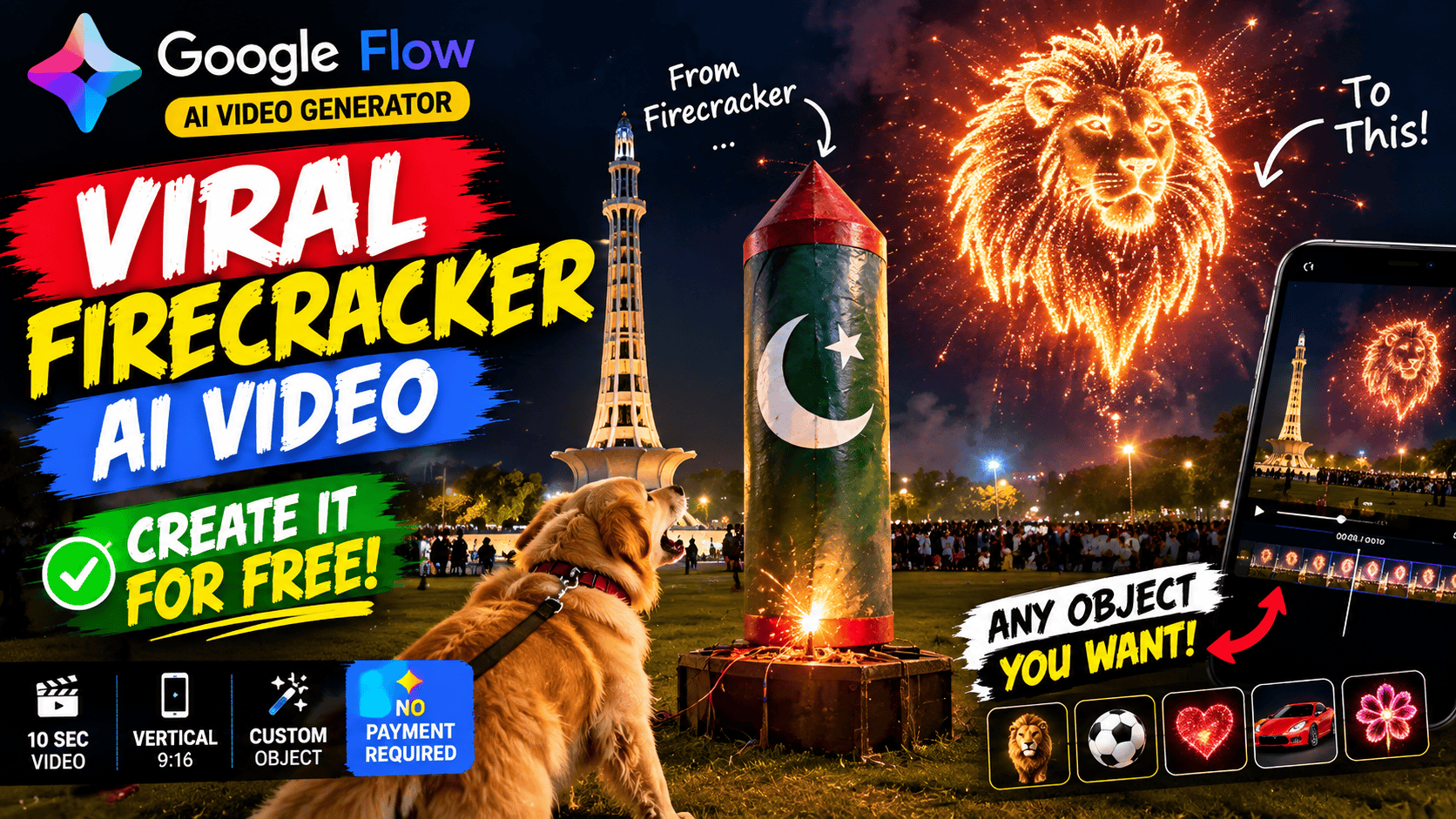
AI-generated videos are becoming a popular way to create entertaining content for TikTok, YouTube Shorts, Instagram Reels and Facebook. One particularly eye-catching style combines a realistic phone-camera recording, a surprising event, a frightened animal and a spectacular explosion in the sky.
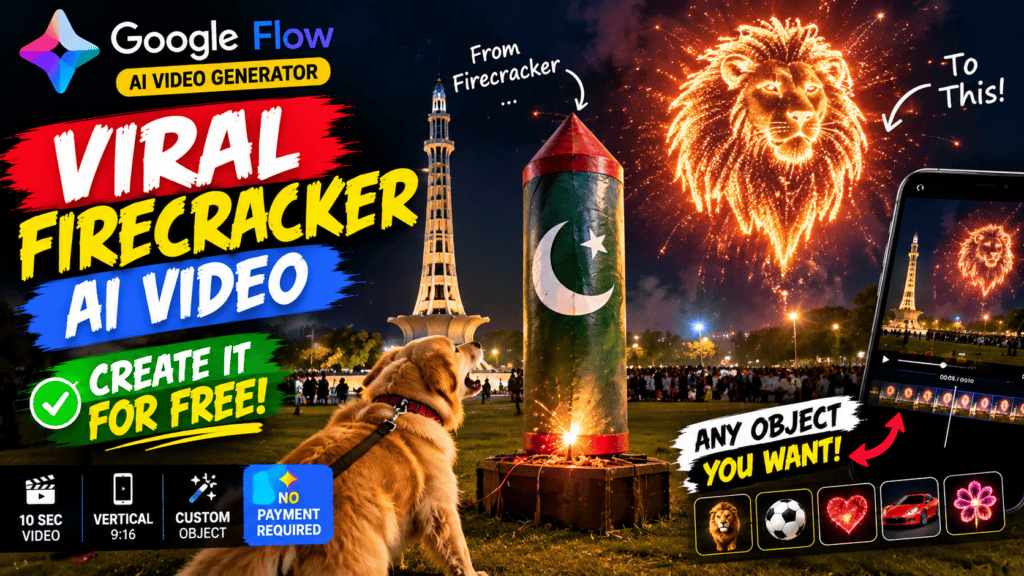
Imagine a person recording a dog standing near a giant firecracker. Suddenly, the firecracker launches into the sky and explodes into a glowing image of a chosen object. The dog reacts with surprise while the crowd watches the incredible scene.
Videos like this can look surprisingly realistic when the prompt describes the camera movement, lighting, environment, sound effects and actions in detail.
The good news is that you can experiment with AI video generation using Google’s Flow platform without necessarily purchasing a subscription. Free access has limitations, however, and video generation may not always be available to free users. Google currently lists 50 daily Flow credits for non-subscribers, while availability during peak hours and supported features can vary.
In this guide, you’ll learn how the viral firecracker video style works, how to access Google Flow, how to write an effective prompt, and how to create your own version by replacing the featured object with anything you like.
What Is the Viral Firecracker AI Video Trend?
The firecracker AI video trend uses a simple idea: something ordinary happens, followed by an unexpected and visually impressive moment.
A person appears to record the event on a smartphone. The video starts with a dog, a firecracker or another unusual object. The camera moves naturally as the action unfolds. Suddenly, the object launches into the sky and creates an impressive explosion or glowing shape.
The contrast between the realistic beginning and the extraordinary ending makes this style entertaining.
For example, your video might feature a giant firecracker that transforms into a glowing lion, a football, a heart, a car, a national symbol or another recognizable object.
You can also change the location, the animal, the person, the colors and the sound effects to develop your own version.
What makes this style interesting is that the video is not supposed to look like a polished Hollywood movie. Instead, it should resemble footage captured unexpectedly by an ordinary person.
Slight camera shake, autofocus adjustments, changes in exposure and realistic environmental sounds can help communicate that effect.
Remember that these are AI-generated scenes, not evidence that an actual event occurred.
How Google Flow Helps You Create AI Videos
Google Flow is Google’s AI filmmaking tool. It allows users to create video clips from written prompts and work with visual references, frames and other assets. Depending on the available model and features, you can specify video orientation and generation length.
Instead of recording every scene yourself, you describe what should happen, and the AI attempts to generate the footage.
For example, you could write a prompt describing a dog standing on a grassy area at night, a person lighting a fictional firecracker, a rocket launching and a glowing object appearing in the sky.
The more clearly you explain the scene, the easier it is for the AI to understand your intended result.
Google Flow supports detailed descriptions of the subject, action, environment, lighting and visual style. It also provides options for selecting video settings before generation.
You can access the official platform here:
Google Flow: Open Google Flow
Can You Use Google Flow for Free?
Yes, you can try Google Flow without a paid subscription, subject to the current availability and restrictions.
According to Google’s current credit information, non-subscribers receive 50 Flow credits per day. However, free video generation may be unavailable during peak hours, approximately 2 PM to 5 PM UTC. Access to specific models and features also depends on the account and eligibility requirements.
This means free access should not be understood as unlimited video generation.
If you are using Google Flow for the first time, open the official website and sign in with your Google account. Check whether video generation is available for your account and region.
If the platform offers video generation, review the available models and credit costs before creating your clip.
For a short experiment, a lower-cost generation option may be sufficient. You can use the remaining credits to try different prompts or improve the result.
If video generation is unavailable, check again later or review Google’s current access requirements. Avoid paying anyone who promises guaranteed access to a free account without verifying that the offer is legitimate.
Step-by-Step: How to Create a Firecracker AI Video
Step 1: Open Google Flow
Visit Google Flow’s official website using a supported browser.
Sign in with your Google account if requested.
Start a new project or open an existing one. The available interface and options may differ depending on your device, account and region.
Step 2: Choose Video Generation
Open the generation settings and select the video option.
Choose the available model, orientation and duration that best match your idea.
For this example, the target format is vertical 9:16, which is suitable for TikTok, YouTube Shorts, Instagram Reels and Facebook Reels.
The desired final duration is 10 seconds. However, if your selected model does not support a 10-second generation, choose an available duration or create multiple clips and edit them together.
Google Flow’s current creation interface allows users to choose from supported video preferences, including orientation and generation length.
Step 3: Copy the AI Video Prompt
The prompt is the most important part of this process.
A short instruction such as “make a firecracker explode into a beautiful shape” does not explain how the camera should move, what the surroundings should look like, or how the event should unfold.
A detailed prompt can specify the entire sequence, from the opening shot to the final explosion.
I’ve adapted the following prompt so that anyone can customize it. Replace OBJECT with the object you want to feature in your video.
For example, you could use a lion, football, heart, flower, car or another recognizable shape.
Complete Copyable AI Video Prompt
Copy the prompt below and paste it into Google Flow’s video-generation prompt box.
*** “”” VIDEO STYLE: Vertical 9:16, 10 seconds, filmed as a real phone POV, like a person recording at an event. Handheld with natural shake, starting low and behind a golden retriever (red collar, black leash). Quick whip-pans, slight autofocus hunting, exposure shifts when fire flares, and a tilt-up to follow the rocket. Night scene with phone-camera realism: slightly noisy shadows, blown-out highlights on fire and fireworks, lens flare, a bit of compression softness. Not cinematic, not over-polished. Lighting: Minar-e-Pakistan in Lahore lit up in the background, warm ground lights, a crowd of small lit figures behind a barrier on the grass of Iqbal Park.
SCENE:
0:00-0:02 – A giant firecracker shaped like a lion-man (a standing lion with a big mane, wearing human clothes: a jacket, shirt and trousers) stands on a platform on the grass near Minar-e-Pakistan at night. The golden retriever stands in the foreground barking bravely at it.
0:02-0:04 – A man in shalwar kameez runs up, lights the fuse, and sprints away trailing sparks. The dog keeps barking, more nervous now.
0:04-0:07 – A bright flash of fire as the lion-man firecracker blasts off. The dog stops barking and scrambles backward in fear toward the camera. The phone whip-pans and tilts up to follow the rocket and its smoke trail into the sky.
0:07-0:10 – The rocket explodes high in the night sky above Minar-e-Pakistan as a glowing firework in the exact shape of the lion-man: golden mane, lion face, and a clothed human body with jacket and trousers, in sparkling gold, orange and red. The phone holds steady on the burst while the dog’s head peeks up cautiously at the bottom of the frame.
AUDIO (phone-mic sound, slightly compressed and clipped on the loud booms): dog barks, crowd murmur, fuse sizzle, flame roar, rising rocket whistle, startled dog yelp, paws scrambling on grass, crowd gasp, deep boom, crackle tail, cheers, one small worried whimper.
CONTINUITY: Same golden retriever, same giant lion-man firecracker and same Minar-e-Pakistan in every moment. The final sky burst must match the lion-man’s shape, mane and clothes.
Important: Replace every occurrence of OBJECT with your chosen subject. Use the same subject throughout the prompt so the AI has a consistent visual target.”””“”***
Step 4: Generate Your Video
After pasting the prompt, review the available settings.
Select vertical orientation if supported by your chosen model. Choose the closest available duration to 10 seconds and confirm that the selected model has sufficient credits.
Then click the generation button.
The AI will attempt to interpret the instructions and create the video.
The first result might not match every detail. For example, the dog may move differently than expected, the rocket might launch too early, or the final shape might not be recognizable.
This is normal for generative video.
If the first attempt is unsuccessful, modify the prompt rather than repeating it without changes.
You might emphasize the final silhouette, simplify the background, or reduce the number of actions.
Step 5: Improve the Final Result
If your video looks good overall but the final object is unclear, make that requirement more explicit.
For example, add:
“The final glowing firework must form one large, clearly recognizable silhouette of OBJECT, with no additional shapes or unrelated symbols.”
If the dog changes appearance during the video, reinforce the continuity instructions.
You can also use visual references or frames where supported to help maintain consistency. Google Flow provides options for adding ingredients and start or end frames to certain video workflows.
For complex sequences, generating separate clips and combining them in a video editor may provide more control than asking the AI to get everything right in one generation.
How to Customize the Prompt for Different Objects
The best part of this prompt is that you are not limited to one particular design.
Here are a few ideas you can try.
A giant lion: Replace OBJECT with a majestic lion’s head, including its distinctive mane and facial features.
A football: Use a recognizable football silhouette made from glowing gold and orange particles.
A heart: Create a large, symmetrical glowing heart surrounded by sparkling red and golden trails.
A luxury car: Try a recognizable car silhouette with glowing outlines and sparkling details.
A flower: Use a large flower with distinct petals and a glowing golden center.
For the best results, choose a subject with a simple, recognizable silhouette. Extremely detailed objects can be difficult for video models to reproduce accurately when formed from fireworks.
How to Make the Video More Viral
There is no guaranteed formula for making an AI video go viral, but a few creative choices can make it more engaging.
First, make the opening interesting. The viewer should immediately understand that something unusual is about to happen.
Second, build anticipation. The dog’s reaction, the fuse and the rising rocket create a sequence of events rather than presenting the final image immediately.
Third, make the reveal easy to understand. The glowing shape should be large and recognizable against the dark sky.
Fourth, keep the video short. A concise 10-second clip can work well for short-form platforms, provided the action is easy to follow.
Finally, consider adding a short caption such as:
“What should explode into the sky next? 👀✨”
This invites viewers to suggest another object for your next video.
When publishing, label the content as AI-generated where appropriate and follow the platform’s synthetic-media disclosure rules.
Final Thoughts
AI video generation gives content creators a way to experiment with unusual ideas without filming every scene themselves.
With Google Flow, you can explore text-to-video generation, describe realistic camera movements, create dramatic visual effects and experiment with different subjects.
The prompt in this article provides a starting point for creating a 10-second vertical video featuring a dog, a fictional firecracker and a glowing object in the night sky.
Simply replace OBJECT with your preferred subject, paste the prompt into Google Flow, and adjust the settings available to your account.
You can try Google Flow without a paid subscription where free access is available, but remember that daily credits, model availability and video-generation restrictions apply.
Start experimenting, improve your prompts, and create your own version of this eye-catching AI video style.