Mobile video editing has improved dramatically over the past few years. Today, you no longer need a powerful computer to create professional-looking videos. With just a smartphone, creators can trim clips, add transitions, apply effects, include subtitles, and export high-quality videos within minutes.
Among the many editing apps available, CapCut and InShot have become two of the most popular choices. Both applications are trusted by millions of creators worldwide and are commonly used for YouTube videos, TikTok, Instagram Reels, Facebook videos, and short-form content.
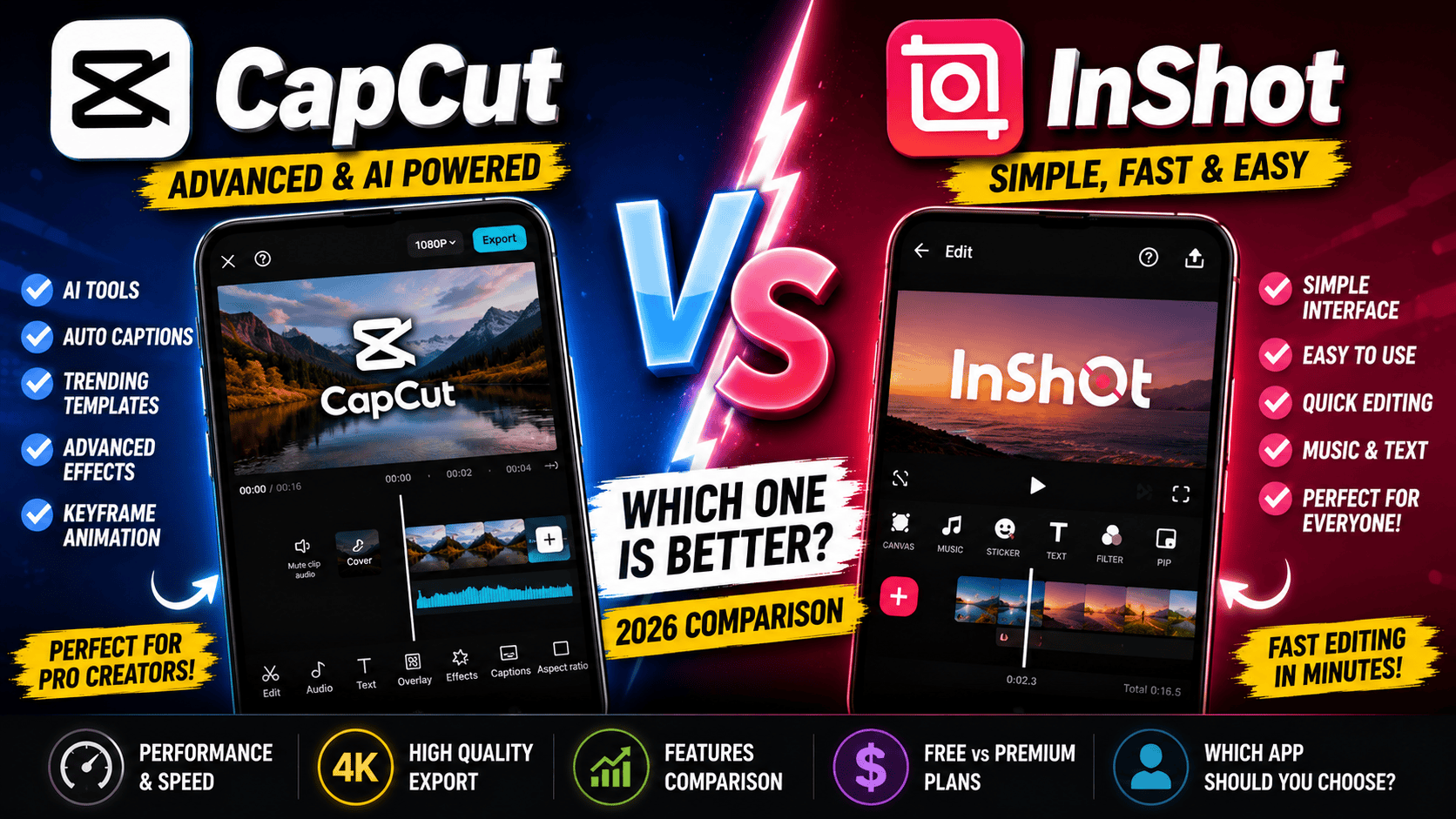
Although they share many similar features, they are designed with different types of users in mind. CapCut focuses heavily on AI-powered editing and advanced creative tools, while InShot emphasizes simplicity, speed, and ease of use.
If you’re unsure which editor deserves a place on your phone, this comparison will help you understand their strengths, weaknesses, and ideal use cases.
Why Choosing the Right Video Editor Matters
Good editing can completely change how viewers experience a video. Smooth transitions, attractive text animations, clear audio, and proper color adjustments make content more engaging and professional.
However, choosing an editing app isn’t only about having the most features. The best editor is one that fits your workflow and helps you finish projects efficiently.
Some creators need advanced editing tools with AI assistance, while others simply want an app that lets them cut clips, add music, and upload videos quickly.
Understanding these differences makes it easier to choose the right application.
What Is CapCut?
CapCut is a video editing application developed by ByteDance, the company behind TikTok. Since its release, the app has gained enormous popularity because it combines beginner-friendly editing with advanced creative features.
The app includes timeline editing, transitions, filters, AI-powered tools, automatic captions, motion effects, templates, keyframe animation, background removal, and many other features that previously required professional editing software.
Because of its close integration with modern content creation, CapCut has become especially popular among creators producing short-form videos.
Its interface continues to evolve with regular updates that introduce new creative tools.
What Is InShot?
InShot is another widely used mobile video editor designed for users who want a fast and simple editing experience.
Instead of focusing heavily on advanced editing, InShot provides practical tools that help users create polished videos with minimal effort.
Users can trim videos, merge clips, adjust speed, add music, apply filters, include text, create photo slideshows, and export content in different resolutions.
Its straightforward interface makes it one of the easiest editing applications for beginners.
Many social media creators appreciate InShot because they can finish editing within minutes without learning complicated controls.
User Interface Comparison
The first thing users notice after installing an editing app is its interface.
CapCut offers a modern workspace with multiple editing panels, AI tools, effects, templates, audio controls, and animation options. While everything is organized well, first-time users may need some time to become familiar with all available features.
InShot takes a different approach.
The interface is cleaner and less crowded.
Most editing functions are placed where beginners can find them quickly, reducing the learning curve.
For users who simply want to cut clips, add music, and export videos, InShot feels immediately comfortable.
Creators looking for professional editing flexibility may prefer CapCut, while users seeking simplicity often enjoy InShot’s layout.
Installation and Setup
Both applications are available for Android and iOS devices and can be installed within a few minutes.
The setup process is simple.
Users create or open a project, import videos or photos, and begin editing immediately.
Neither app requires professional editing experience.
This accessibility is one of the reasons both applications continue attracting millions of users worldwide.
Editing Tools Comparison
Editing tools are where these two applications begin to separate themselves.
CapCut includes an extensive collection of professional editing features.
Users can trim clips, split videos, adjust playback speed, use keyframes, animate objects, stabilize footage, remove backgrounds, apply motion blur, edit audio, and create complex timeline projects.
InShot focuses on the editing tools most users need every day.
It offers trimming, splitting, merging, cropping, speed control, filters, stickers, music, text overlays, and transitions.
While its feature list is smaller than CapCut’s, the tools are extremely easy to use.
For casual editing, many users never feel limited.
Templates and Ready-Made Projects
Templates have become extremely popular because they allow creators to produce attractive videos within minutes.
CapCut offers one of the largest collections of templates, many of which are designed around current social media trends.
Users simply replace the sample clips with their own footage.
The application automatically creates stylish videos using pre-designed animations and transitions.
InShot includes templates and creative assets as well, but they are generally less extensive than CapCut’s growing template library.
Creators who frequently publish trend-based videos often appreciate CapCut’s larger template collection.
Music and Audio Editing
Audio is an important part of every video.
CapCut provides several audio editing tools, including music tracks, sound effects, voice recording, noise reduction, volume adjustments, fade effects, and automatic captions.
InShot also allows users to add background music, record voiceovers, adjust audio levels, and include sound effects.
For basic editing, both applications perform well.
However, creators working on more advanced projects may appreciate CapCut’s broader collection of audio features.
Export Quality
Both applications support exporting videos in multiple resolutions depending on the device and project settings.
Users can generally choose different quality levels to balance video clarity and file size.
Higher resolutions create sharper videos but require more storage space.
Both editors produce good-looking exports suitable for YouTube, Instagram, TikTok, Facebook, and other social platforms.
For most everyday creators, export quality is more than sufficient.
Performance and Stability
Performance becomes important when editing longer or higher-resolution videos.
CapCut performs very well on modern smartphones, although projects with many effects and animations may require additional processing power.
InShot is known for its lightweight design.
Even users with mid-range smartphones often experience smooth editing performance.
Creators with older devices sometimes prefer InShot because it places less demand on system resources.
let’s compare the advanced features, AI capabilities, editing experience, and overall performance of CapCut and InShot.
AI Features Comparison
Artificial intelligence has become one of the biggest differences between modern video editors.
CapCut has invested heavily in AI-powered editing tools. Many of these features help creators save time while producing professional-looking videos. Depending on the version available, users may find tools such as automatic captions, background removal, AI-generated subtitles, object tracking, text-to-speech, voice enhancement, auto cutout, and various AI-assisted editing options.
These tools are especially useful for YouTubers, TikTok creators, and businesses that publish videos regularly. Instead of manually completing repetitive editing tasks, creators can rely on AI to speed up their workflow.
InShot also includes smart editing features, but its focus remains on providing a simple and reliable editing experience rather than offering a large collection of AI tools. For users who only need basic editing functions, this approach keeps the app fast and easy to understand.
If AI-powered editing is important to you, CapCut clearly offers a broader range of intelligent features.
Filters and Visual Effects
Visual effects help transform ordinary videos into content that captures attention.
CapCut provides an extensive library of filters, cinematic effects, transitions, overlays, glitch animations, light leaks, motion blur, and creative visual styles. New effects are added regularly, allowing creators to keep up with social media trends.
InShot also offers filters, beauty adjustments, vintage looks, color styles, and creative effects. Although the library is smaller, the available options are suitable for most everyday editing needs.
For users who enjoy experimenting with different visual styles, CapCut provides greater creative freedom.
Transitions
Smooth transitions make videos feel polished and professional.
CapCut includes a large collection of transition effects such as:
- Fade
- Zoom
- Spin
- Blur
- Flash
- Camera movement
- Glitch
- Film transitions
- Dynamic social media transitions
These transitions are especially useful for short-form content.
InShot offers several popular transition styles that are easy to apply between clips. The selection is smaller than CapCut’s but still covers the needs of most creators producing YouTube videos, travel vlogs, family videos, and social media posts.
Text and Title Animations
Adding text helps explain information, introduce topics, and improve viewer engagement.
CapCut includes animated titles, subtitle styles, customizable fonts, motion effects, and text animations that can be adjusted with keyframes.
Creators can produce modern-looking captions that match today’s social media editing style.
InShot also allows users to add text, choose different fonts, adjust colors, and apply simple animations.
While both applications perform well, CapCut offers more advanced customization for users who enjoy detailed editing.
Audio Editing
Good audio quality can significantly improve the overall viewing experience.
CapCut provides several audio editing tools, including:
- Voice recording
- Music library
- Sound effects
- Voice enhancement
- Noise reduction
- Audio fading
- Volume adjustment
- Beat synchronization
These tools give creators greater control over the final sound.
InShot offers voice recording, background music, sound effects, and basic audio controls.
For casual editing, InShot performs very well.
For creators producing professional YouTube videos or promotional content, CapCut’s expanded audio features may be more useful.
Watermark Comparison
Many users care about watermarks when choosing a free editing app.
CapCut generally allows users to export many projects without adding a permanent watermark, although this can vary depending on the specific feature or template being used.
InShot’s free version commonly places a watermark on exported videos, which can usually be removed through available options or by using the premium version.
Users who frequently create content for clients or businesses should always check the latest export conditions within each application.
Speed and Performance
Editing speed affects productivity, especially for creators who publish content every day.
CapCut remains impressively fast considering the large number of features it includes. However, projects containing many AI effects, animations, or high-resolution clips may require additional processing time.
InShot is lightweight and optimized for quick editing.
Even mid-range Android devices generally run the application smoothly.
Creators with older smartphones often appreciate InShot because it performs well without requiring powerful hardware.
Storage Usage
Storage consumption varies depending on project size.
CapCut may occupy more storage because of its larger collection of templates, AI models, effects, and downloaded assets.
InShot typically requires less storage, making it suitable for users with limited phone memory.
Regardless of the editor, regularly deleting unused project files helps keep storage under control.
Learning Curve
Both applications are beginner-friendly, but they appeal to different audiences.
CapCut offers many advanced tools, which means new users may need some time to explore all available features.
Fortunately, the interface is organized logically, allowing creators to learn gradually.
InShot is easier to master from the beginning.
Most editing tools are immediately visible, allowing users to create their first video within minutes.
If your editing needs are simple, InShot feels more approachable.
If you plan to develop advanced editing skills, CapCut provides greater room for growth.
Pros and Cons
CapCut
Pros
- Excellent AI editing tools
- Large collection of templates
- Professional transitions
- Automatic captions
- Background removal
- Advanced audio editing
- Frequent updates
- Suitable for beginners and advanced users
Cons
- Some advanced features require an internet connection
- Larger storage usage
- Premium features require a subscription
- Complex projects may take longer to process
InShot
Pros
- Very easy to use
- Fast editing performance
- Clean interface
- Lightweight application
- Good export quality
- Great for beginners
Cons
- Smaller collection of AI tools
- Fewer advanced editing options
- Watermark in some free exports
- Limited template library compared to CapCut
Side-by-Side Comparison
| Feature | CapCut | InShot |
|---|---|---|
| User Interface | ⭐⭐⭐⭐☆ | ⭐⭐⭐⭐⭐ |
| AI Features | ⭐⭐⭐⭐⭐ | ⭐⭐⭐☆☆ |
| Templates | ⭐⭐⭐⭐⭐ | ⭐⭐⭐⭐☆ |
| Video Effects | ⭐⭐⭐⭐⭐ | ⭐⭐⭐⭐☆ |
| Transitions | ⭐⭐⭐⭐⭐ | ⭐⭐⭐⭐☆ |
| Text Animation | ⭐⭐⭐⭐⭐ | ⭐⭐⭐⭐☆ |
| Audio Editing | ⭐⭐⭐⭐⭐ | ⭐⭐⭐⭐☆ |
| Export Quality | ⭐⭐⭐⭐⭐ | ⭐⭐⭐⭐⭐ |
| Performance | ⭐⭐⭐⭐☆ | ⭐⭐⭐⭐⭐ |
| Beginner Friendly | ⭐⭐⭐⭐☆ | ⭐⭐⭐⭐⭐ |
| Advanced Editing | ⭐⭐⭐⭐⭐ | ⭐⭐⭐⭐☆ |
Which App Is Better for YouTube?
YouTube creators often need more than basic trimming and transitions. They usually work on longer videos that require subtitles, background music, color adjustments, voice enhancement, and engaging visual effects. The editing app they choose should support both creativity and efficiency.
CapCut is a strong option for YouTube creators because it combines professional editing tools with AI-powered features. Automatic captions, keyframe animation, advanced transitions, background removal, and a large template library allow creators to produce polished videos without switching between multiple apps.
InShot also performs well for YouTube, especially for vloggers, tutorial creators, and beginners who prefer a faster editing process. Its clean interface helps users finish projects quickly without feeling overwhelmed.
If your YouTube channel focuses on cinematic editing, storytelling, gaming, or educational content, CapCut provides more creative flexibility. If your videos mainly require trimming, text, music, and quick exports, InShot is more than capable.
Which App Is Better for TikTok and Instagram Reels?
Short-form content is now one of the biggest trends in social media. TikTok, Instagram Reels, Facebook Reels, and YouTube Shorts reward creators who publish engaging videos consistently.
CapCut has a clear advantage in this category. Since it is developed by ByteDance, the same company behind TikTok, the app frequently introduces features that match current social media trends. Trending templates, animated captions, AI effects, and modern transitions make it easier to create eye-catching short videos.
InShot is also an excellent editor for vertical videos. It offers cropping tools, aspect ratio adjustments, music, stickers, text, and filters that work well for social platforms. However, it does not update trend-based templates as frequently as CapCut.
Creators who regularly produce viral-style content will likely appreciate CapCut’s constantly expanding creative tools.
Which App Is Better for Beginners?
Ease of use is one of the biggest concerns for new editors.
InShot is designed with simplicity in mind. Most editing tools are clearly labeled and easy to access. Beginners can import clips, trim unwanted sections, add music, insert text, and export their videos within a few minutes.
CapCut is also beginner-friendly, but it includes many more advanced options. While these extra tools offer greater creative control, they can feel overwhelming during the first few editing sessions.
For someone editing their very first video, InShot is generally easier to learn. For users who plan to improve their editing skills over time, CapCut offers more opportunities to grow.
Free vs Premium Comparison
Both applications are available as free downloads, making them accessible to a wide range of users. The free versions include enough features for many everyday editing tasks, but premium subscriptions unlock additional tools and assets.
CapCut Premium may include:
- More AI editing features
- Premium effects
- Exclusive templates
- Additional transitions
- Advanced filters
- Premium fonts
- Cloud-based features (depending on availability)
InShot Premium may include:
- Removal of watermarks
- Additional filters
- Premium stickers
- More transition styles
- Extra visual effects
- Expanded music library
For casual users, the free versions are often sufficient. Creators who edit videos professionally or publish content regularly may benefit from the premium plans, depending on the features they need.
Which App Should You Choose?
Choosing between CapCut and InShot depends on your editing style and content goals.
Choose CapCut if you:
- Want advanced editing tools
- Use AI-powered features regularly
- Create YouTube videos
- Produce TikTok or Instagram Reels
- Need automatic captions
- Enjoy experimenting with templates and animations
- Plan to improve your editing skills over time
Choose InShot if you:
- Prefer a simple interface
- Want fast editing without complexity
- Mainly edit short videos
- Use an older or mid-range smartphone
- Need basic editing tools that work reliably
- Are completely new to video editing
Both apps are excellent in their own way. The better option depends on whether you prioritize advanced creativity or simplicity.
Frequently Asked Questions
Is CapCut free to use?
Yes. CapCut offers a free version with many powerful editing tools. Some advanced features and creative assets require a premium subscription.
Is InShot free?
Yes. InShot also provides a free version with useful editing tools. Some premium features and the ability to remove watermarks may require a subscription.
Which app is better for beginners?
InShot is generally easier for beginners because of its clean interface and straightforward workflow.
Which app offers better AI tools?
CapCut provides a significantly larger collection of AI-powered editing features, making it the stronger choice for creators interested in automation and advanced editing.
Can I edit 4K videos in these apps?
Both apps support high-quality exports on compatible devices, though available resolutions and performance may depend on your phone’s hardware and the app version.
Which app is better for YouTube Shorts and TikTok?
CapCut is often preferred for short-form content because of its trend-focused templates, AI tools, and modern visual effects.
Final Verdict
Both CapCut and InShot have earned their popularity by helping millions of creators produce engaging videos directly from their smartphones.
CapCut stands out as a feature-rich editor with powerful AI tools, advanced effects, professional transitions, and a constantly growing template library. It is an excellent choice for creators who want maximum creative control and regularly produce content for YouTube, TikTok, or Instagram.
InShot succeeds by keeping video editing simple and efficient. Its clean interface, smooth performance, and beginner-friendly workflow make it an ideal editor for users who want to create attractive videos without spending time learning advanced techniques.
Neither app is objectively better for everyone. If your priority is advanced editing and future growth, CapCut is the stronger option. If your goal is fast, reliable, and uncomplicated editing, InShot remains one of the best mobile video editors available.
Conclusion
Mobile video editing has never been more accessible, and both CapCut and InShot prove that professional-looking content can be created using only a smartphone. Each application offers a unique editing experience, allowing creators to choose the workflow that best matches their needs.
CapCut is the ideal choice for users who enjoy experimenting with AI features, creative effects, and advanced editing tools. Its versatility makes it suitable for content creators who want to produce high-quality videos across multiple platforms.
InShot, on the other hand, focuses on speed, simplicity, and ease of use. It is perfect for beginners, casual creators, and anyone who values an efficient editing process without unnecessary complexity.
No matter which editor you choose, consistent practice, creative storytelling, and attention to detail will have a greater impact on your videos than the editing app alone. The best tool is the one that helps you create content confidently and consistently.